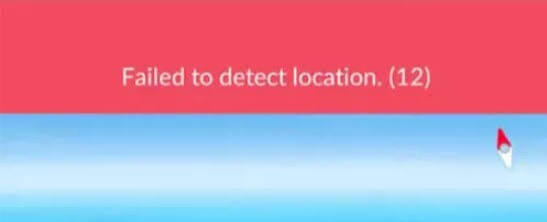
Ready to catch Pokémon, only to see “GPS Signal Not Found (11)” or “Failed to Detect Location (12)”?
Both errors can prevent the map from loading correctly. Your Trainer may remain in one place, while nearby Pokémon, PokéStops, and Gyms disappear. However, these two errors do not always have the same cause.
Error 11 is usually related to GPS signals or location permissions. Error 12 is more commonly associated with invalid location data, outdated location changers, or incompatibility with Pokémon GO’s location detection.
This guide explains the differences, provides quick iPhone troubleshooting steps, and shows how iFlowGo can provide a more stable location-changing experience.
Pokémon GO Error 11 vs. Error 12
| Error | What It Means | Common Causes |
|---|---|---|
| GPS Signal Not Found (11) | Pokémon GO cannot receive a GPS signal | Location Services disabled, Precise Location turned off, weak GPS signal, or network issues |
| Failed to Detect Location (12) | Pokémon GO cannot verify or correctly read the location | Invalid location data, outdated spoofing tools, modified apps, or compatibility problems |
| Blank map or frozen character | The game is not updating your position | Poor network connection, game lag, or an iOS/Pokémon GO version issue |
If you have never used a location changer, start by checking your iPhone’s permissions, GPS signal, and internet connection.
If Error 12 appeared while using an older location tool, that tool may no longer be compatible with the current version of Pokémon GO.
Why Can’t Pokémon GO Detect Your Location?
1. Location Permissions Are Not Enabled
Pokémon GO is a location-based game. Without access to your iPhone’s location, it cannot load nearby Pokémon, PokéStops, or Gyms.
Go to:
Settings → Privacy & Security → Location Services → Pokémon GO
Then confirm that:
- Location Services are enabled
- Pokémon GO can access your location while using the app
- Precise Location is enabled
2. The GPS Signal Is Weak 🛰️
Underground stations, basements, tall buildings, and dense urban areas can block or weaken GPS signals.
Move closer to a window or go to an open outdoor area. Wait a few moments, then reopen Pokémon GO.
3. Your Internet Connection Is Unstable
Pokémon GO needs both location data and an internet connection. Even when GPS is working, an unstable Wi-Fi or mobile connection may prevent the map from loading.
Try switching between Wi-Fi and mobile data. You can also enable Airplane Mode for a few seconds, turn it off, and reconnect.
4. Pokémon GO or iOS Is Outdated
An older version of Pokémon GO may not work correctly with the current version of iOS. Temporary problems can also appear shortly after a game or system update.
Check the App Store for Pokémon GO updates, then restart your iPhone.
5. Your Location Changer Is No Longer Compatible
Pokémon GO’s location-detection system changes over time. Older tools may rely on outdated GPS methods or modified game clients, making Error 12 more likely after an update.
In this situation, restarting the game may not be enough. You may need to stop the old tool and switch to a solution that supports the current Pokémon GO environment.
Pokémon GO Location Error Solutions Compared
| Solution | Best For | Official App | Jailbreak Required | Main Limitation |
|---|---|---|---|---|
| Check location permissions | Error 11 and missing GPS signal | ✅ | ❌ | Does not fix tool compatibility |
| Switch or reset the network | Blank maps and delayed loading | ✅ | ❌ | Only works for network problems |
| Update or reinstall the game | Corrupted files or version issues | ✅ | ❌ | You may need to sign in again |
| VPN | Changing your IP region | ✅ | ❌ | Does not change GPS coordinates |
| Modified Pokémon GO app | Location and extra features | ❌ | Usually not | Does not use the official game client |
| Physical location hardware | GPS location changing | ✅ | ❌ | Expensive and requires extra hardware |
| iFlowGo | iOS location changing and Error 12 compatibility | ✅ | ❌ | Requires an initial device connection |
If the problem is caused by ordinary GPS or network issues, start with the iPhone settings.
If Error 12 appears while using a location changer, iFlowGo provides a more complete option designed for iOS.
Why Use iFlowGo for Pokémon GO Error 12? ✨
iFlowGo is designed specifically for changing GPS locations on iPhone. It connects through Bluetooth and works with the official Pokémon GO app, so you do not need to install a modified game client.
According to iFlowGo, the software has been updated to address the Error 12 issue that affected many GPS location tools after Pokémon GO changed its location detection system. You can learn more on the iFlowGo official website.
Key iFlowGo advantages include:
- ✅ Works with the official Pokémon GO app
- ✅ No jailbreak required
- ✅ No cracked IPA or modified game client
- ✅ Bluetooth-based device connection
- ✅ One-click GPS teleportation
- ✅ Virtual joystick movement
- ✅ Single-point and multi-point routes
- ✅ Saved locations and routes
- ✅ Built-in Virtual GO Plus
- ✅ Automatic Pokémon catching and PokéStop spinning
- ✅ Support for multiple iPhones
Unlike modified Pokémon GO apps, iFlowGo does not directly modify or inject files into the official game client. It also eliminates the need to purchase and carry a separate location-changing hardware device.
iFlowGo vs. Other Location-Changing Methods
| Feature | iFlowGo | Modified App | Physical Hardware | VPN |
|---|---|---|---|---|
| Changes iPhone GPS | ✅ | ✅ | ✅ | ❌ |
| Uses official Pokémon GO | ✅ | ❌ | ✅ | ✅ |
| No jailbreak required | ✅ | Usually | ✅ | ✅ |
| No extra hardware purchase | ✅ | ✅ | ❌ | ✅ |
| Virtual joystick | ✅ | ✅ | Sometimes | ❌ |
| Route simulation | ✅ | ✅ | Sometimes | ❌ |
| Virtual GO Plus | ✅ | Sometimes | ❌ | ❌ |
| Auto-catch and auto-spin | ✅ | Sometimes | Requires GO Plus | ❌ |
| Designed for Error 12 compatibility | ✅ | Varies | Varies | ❌ |
iFlowGo combines teleportation, joystick controls, route planning, and Virtual GO Plus in one tool. This makes it especially convenient for iOS players who want a simpler setup.
How to Restore Pokémon GO Location with iFlowGo
The basic process is straightforward:
- Open iFlowGo on your computer.
- Connect your iPhone through Bluetooth.
- Wait for the location to initialize.
- Select a destination or movement route.
- Open the official Pokémon GO app and check the map.
If you previously used another location changer, close it completely and restart your iPhone before connecting to iFlowGo. Running multiple GPS tools at the same time may create conflicting location data.
For detailed setup instructions, follow the iFlowGo video tutorial.
What Does iFlowGo Virtual GO Plus Do? 🤖
In addition to changing your GPS location, iFlowGo includes Virtual GO Plus, which simulates a physical Pokémon GO Plus accessory.
Once connected, it can:
- Detect nearby Pokémon automatically
- Attempt Pokémon catches automatically
- Spin nearby PokéStops
- Collect Poké Balls and other items
- Reduce repetitive tapping and manual throws
- Accumulate Stardust and XP while following a route
Virtual GO Plus does not require you to purchase a separate GO Plus device. According to the iFlowGo Virtual GO Plus guide, the first setup requires pairing, while future sessions can reconnect more quickly.
Automatic catches are not guaranteed to succeed. Virtual GO Plus also consumes Poké Balls, so make sure your Item Bag and Pokémon Storage have enough available space.
Quick Troubleshooting Checklist 🔧
If Pokémon GO still cannot detect your location, try these steps in order:
- Confirm that iPhone Location Services are enabled.
- Enable Precise Location for Pokémon GO.
- Switch between Wi-Fi and mobile data.
- Close and reopen Pokémon GO.
- Check for Pokémon GO and iOS updates.
- Restart your iPhone.
- Close any other location-changing tools.
- Reconnect iFlowGo and initialize the location again.
- Reinstall Pokémon GO only if the previous steps fail.
Following this order helps you avoid unnecessary network resets or game reinstallation.
Frequently Asked Questions
Are Errors 11 and 12 the same?
No. Error 11 usually means Pokémon GO cannot obtain a GPS signal. Error 12 is more commonly related to invalid location data, an incompatible location changer, or a location that cannot be verified.
Can a VPN fix Pokémon GO Error 12?
Usually not. A VPN changes your IP address, but it does not directly repair or modify your iPhone’s GPS coordinates.
Does iFlowGo require a modified Pokémon GO app?
No. iFlowGo works with the official version of Pokémon GO downloaded from the App Store.
Does iFlowGo require jailbreaking?
No. You can use iFlowGo without jailbreaking your iPhone.
Is using a location changer completely risk-free?
No third-party location changer can guarantee zero risk. Players should follow Pokémon GO’s Terms of Service and avoid unrealistic behavior, such as repeatedly jumping between distant countries or moving at impossible speeds.
How do I restore my real location?
Stop location simulation in iFlowGo and restart your iPhone. The device should then reconnect to its real GPS location.
Final Thoughts 🎮
Pokémon GO Errors 11 and 12 do not always mean that something is wrong with your account.
For Error 11, check your iPhone’s location permissions, Precise Location setting, GPS signal, and network connection first. If Error 12 appeared while using an older location changer, the issue may be related to compatibility with Pokémon GO’s current detection system.
iFlowGo is designed for iOS and works with the official Pokémon GO app without requiring a jailbreak or modified game. It combines GPS teleportation, joystick movement, route simulation, and Virtual GO Plus in one solution.
Complete the basic troubleshooting steps first. If the problem is connected to an outdated location tool, reconnect with the latest version of iFlowGo to restore a more stable Pokémon GO location experience.