YouTube TV uses strict location rules to control local channels, live sports, and regional content. If you’ve moved, are traveling, or want to avoid regional blackouts, understanding how YouTube TV location works — and how to change it — is essential.
In this guide, we’ll explain how YouTube TV detects your location and how you can change your YouTube TV location safely using iFlowGo.
Why Change Your YouTube TV Location?
You may need to update or simulate your location on YouTube TV if:
- You moved to a new city or state and local channels no longer match
- You’re traveling long-term and lost access to your Home Area
- Regional sports blackouts are blocking live games
- You share a YouTube TV account with family in another location
YouTube TV limits Home Area changes to 2 times per year, which often causes problems for frequent travelers.
How YouTube TV Determines Your Location
YouTube TV relies on two location concepts:
1. Home Area
- Set during signup (based on ZIP code + device location)
- Determines your default local channels
- Can only be changed twice per year
2. Current Playback Area
- Detected in real time using GPS, Wi-Fi, and IP
- Affects what you can watch while traveling
- Access may be restricted after 3 months away
Because GPS is involved, VPNs alone do not work reliably with YouTube TV.
How to Change Location on YouTube TV
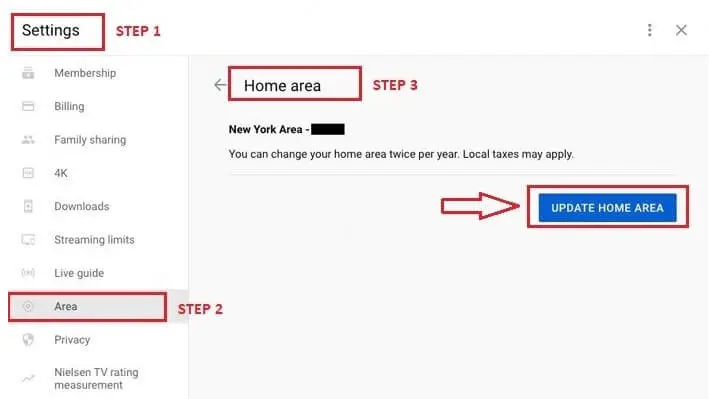
Method 1: Update Home Area (Official)
Best if you’ve permanently moved.
Steps:
- Open YouTube TV on web or mobile
- Profile → Settings → Area → Home Area
- Select Update and allow location access
⚠️ Limited to 2 changes per year.
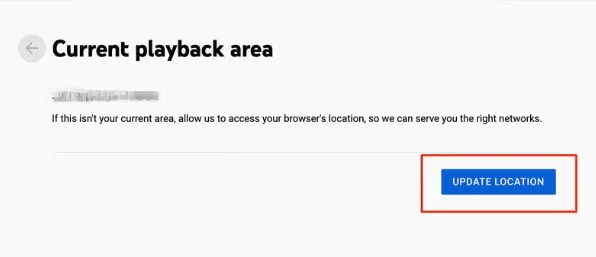
Method 2: Update Playback Area While Traveling
Works for short trips inside the U.S.
Steps:
- Enable GPS on your device
- Open YouTube TV
- Profile → Location → Update Current Playback Area
⚠️ Long-term travel may still trigger restrictions.
Method 3: Use iFlowGo (Recommended)
For frequent travelers, shared accounts, or blackout issues, iFlowGo is the most flexible solution.
What iFlowGo does:
- Changes your GPS location to any U.S. city or ZIP code
- Keeps your Home Area active while traveling
- Unlocks correct local channels & live sports
- Works on iOS & Android
- No jailbreak or root required
Unlike VPNs, iFlowGo simulates real device location, which YouTube TV relies on.
Common YouTube TV Location Errors (Quick Fix)
“YouTube TV isn’t available in your area”
- Disable VPN
- Enable GPS
- Use iFlowGo to set a valid U.S. location
“Can’t determine your location”
- Turn on Location Services
- Connect to Wi-Fi
- Restart the app
“You’re outside your Home Area”
- Update Home Area (if available)
- Or simulate Home Area with iFlowGo
Can You Watch Local Channels While Traveling?
Yes — temporarily.
But after 3 months away, YouTube TV may block your original local channels.
Using iFlowGo, you can maintain your Home Area and keep watching your preferred local content anywhere.
FAQs
Does YouTube TV work with VPNs?
No. VPNs are detected and blocked.
Is YouTube TV region-locked?
Yes. It only works in the U.S., and content varies by ZIP code.
Does YouTube TV check GPS?
Yes. GPS + IP + Wi-Fi data are all used.
Conclusion
Changing your YouTube TV location can be frustrating due to strict limits and regional restrictions. If you want a safe, reliable, and flexible way to manage your YouTube TV location, iFlowGo gives you full control — without jailbreaking or rooting your device.
👉 Try iFlowGo and keep watching your local channels wherever you are.